
Configurator software for installers.
From product idea to accepted job.
Show the proposed product in 3D, keep the customer’s choices with the project and book the site appointment. Prepare a branded proposal that separates the product, fitting and extra work before the job moves forward.
- Keep site appointments linked to the project
- Separate fitting and extras in your proposal
- Track accepted jobs and invoice stages
- Review a product enquiry and the choices your customer needs to make.
- Book a site appointment and prepare product, fitting and extra-work items.
- Follow the accepted proposal into an order and staged invoices.
Bring one product and the sales process you want to improve.
A good-looking configuration is the beginning of the job brief.
The customer’s preferred roof, finish or opening needs to stay connected to the practical questions from the site visit. Keep the product selection and customer project together, then describe the work you will supply in your proposal. The team has a clearer handover when the customer accepts.
Explain the proposed product before the visit
Use the selected configurator to discuss dimensions, finishes and available options. Keep access, fixing conditions and other site questions with the project for your team to confirm.
Book the next step with the right context
Create appointments linked to the customer and project. Use the shared calendar to see the team’s schedule, filter by user and connect a dedicated Google calendar for each connected user.
Make the scope readable before acceptance
Build the proposal with separate items for product, fitting, delivery and additional work. Keep the accepted order, progress notes, invoices and records of external payments with the customer project.
Match the software to the products you fit.
Explore the product families your team installs and the available model choices. The demo is the place to review which options fit your range and where your own product rules require a custom scope.
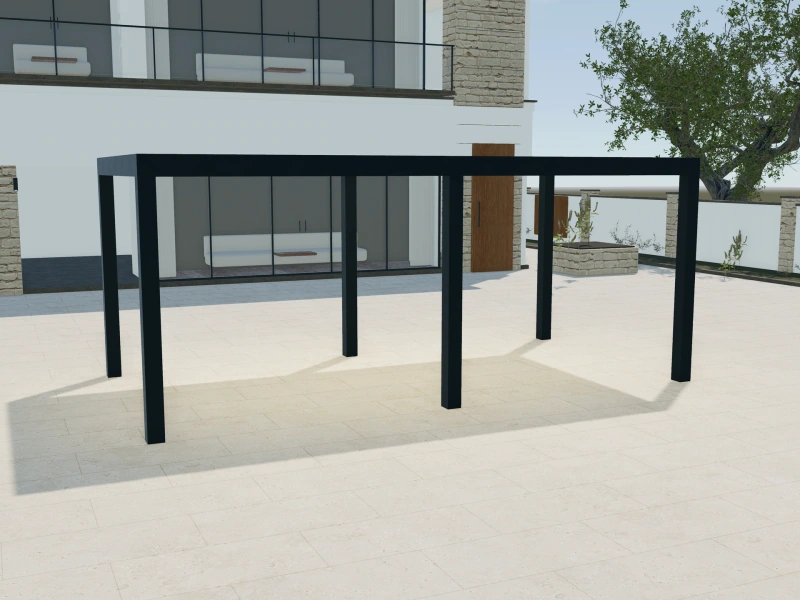
Pergola configurator software
Roof concepts, frame finishes and side treatments.
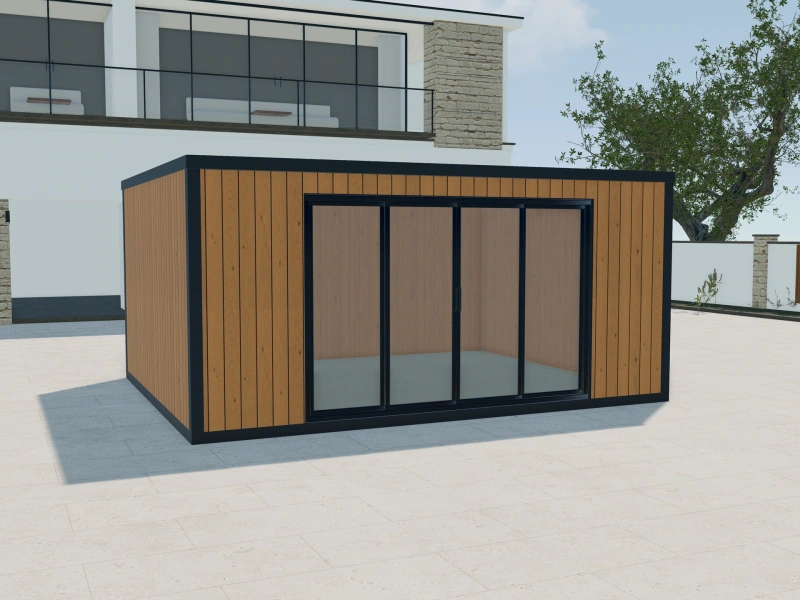
Garden room configurator software
Room footprint, cladding, entrances and glazing.
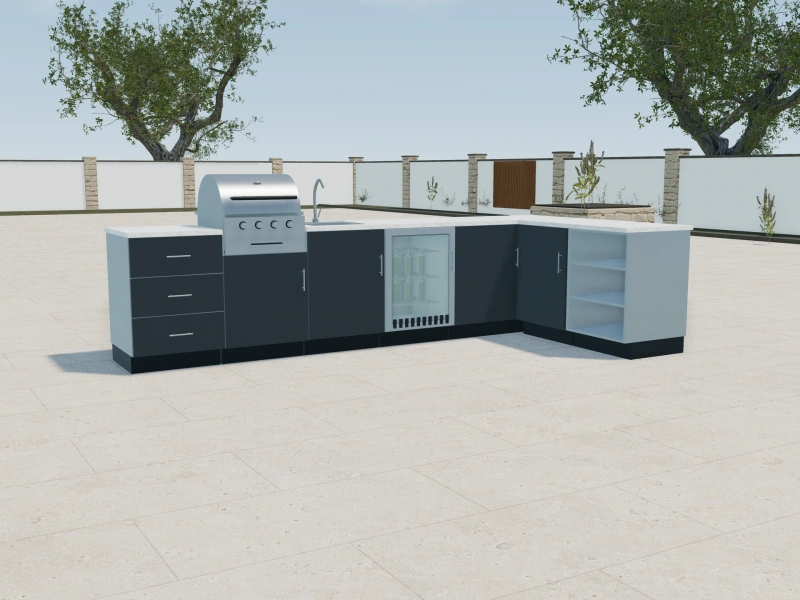
Outdoor kitchen configurator software
Individual cabinets, appliances and worktop finishes.
Put the appointment where the team can find it.
Create a customer or project appointment, give it a clear title and description and assign the responsible user. The shared team calendar keeps the schedule visible, while connected users can sync their dedicated Google calendar.
See this with your productsKeep the accepted job and its invoices together.
Continue the accepted proposal into an order. Follow its progress, write order notes and generate multiple invoices for the same order. Record payments received elsewhere so the commercial history stays attached to the job.
See this with your productsBefore your demo.
Product fit, commercial scope and the way your team works.
Can we quote installation separately from the configured product?
Yes. Add your own proposal line items for fitting, delivery, additional work and the product itself. Your company controls the prices and document branding rather than relying on one platform-wide installation price.
Does the visual model confirm that a product can be installed safely?
No. Your team must verify measurements, substrate, fixing requirements, access and any required technical approval. Use the configuration to explain the product and organise the customer brief; it does not replace the site survey or engineering review.
Can we issue more than one invoice for a job?
Yes. The order workspace supports multiple invoices and records of payments received outside the platform. Your team decides the commercial scope and invoice items for the order.
See the fit before you choose.
Explore the product choices and customer workflow that matter to your business.