
Configurator software for dealers.
Show the choice. Move the sale forward.
Show buyers what they are choosing. Compare the product options, save the preferred configuration with their contact and prepare a proposal with your prices, your installation scope and your company branding.
- Compare options with the customer
- Keep your own retail and fitting prices
- Follow each lead through to the order
- Choose a product your showroom sells and compare a customer’s options.
- Prepare a branded proposal with your own product and fitting items.
- Review how the team follows the lead and hands over the accepted order.
Bring one product and the sales process you want to improve.
The buyer remembers the picture. Your team needs the details too.
A promising visit can become a folder of screenshots, a price in a spreadsheet and a follow-up someone needs to remember. Sales Visualizer puts the selected configuration beside the customer, project status and next appointment, so a colleague can pick up the conversation with context.
Give the customer something clear to choose
Use the relevant 3D model to explain size, finish and available options. Keep different product ideas as customer projects instead of losing the chosen combination in a series of emails.
Price the offer your business actually sells
Add your retail product prices, delivery, fitting and optional services to the proposal. Generate a PDF with your logo rather than passing along a supplier document with a separate handwritten total.
Make follow-up part of the project
Track the lead’s status and book the next review or site visit with the customer and project attached. Continue the accepted proposal into an order with notes, invoices and external payment records.
A clearer sale across your product range.
Start with the configurators that match what your showroom sells. The available controls vary by model, so compare the relevant product choices before selecting your workspace’s library products.
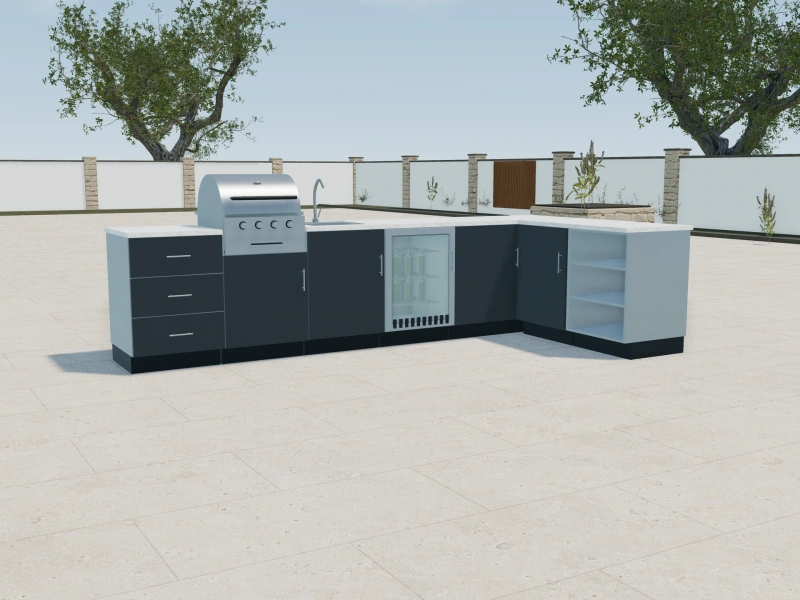
Outdoor kitchen configurator software
Individual cabinets, appliances and worktop finishes.
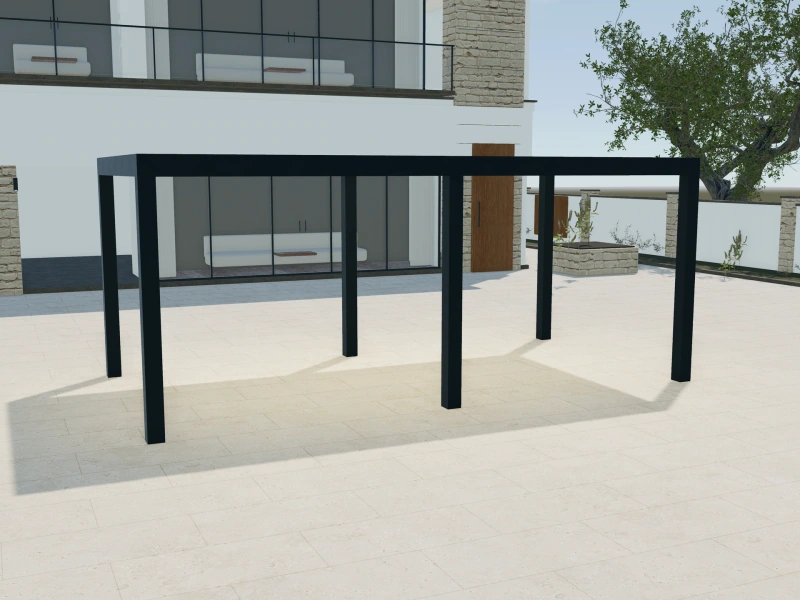
Pergola configurator software
Roof concepts, frame finishes and side treatments.
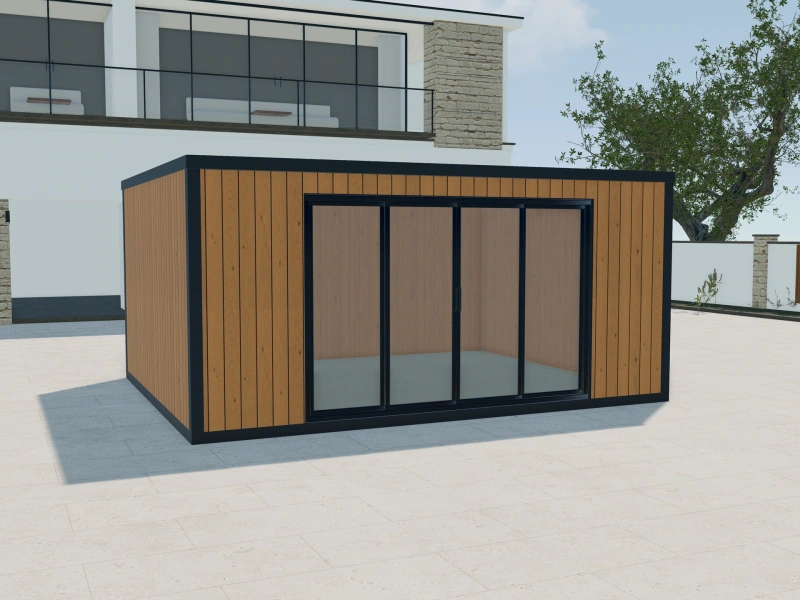
Garden room configurator software
Room footprint, cladding, entrances and glazing.
Know the customer behind every configuration.
Keep contact details and customer projects together. A buyer considering both a garden room and a terrace pergola can have separate product projects within the same customer profile, with appointments and activity kept in context.
See this with your productsA lead is a project with a next step.
Review your project pipeline, see each lead’s status and keep the preferred configuration attached. Use the team calendar for the next review instead of relying on a screenshot and someone’s memory.
See this with your productsBefore your demo.
Product fit, commercial scope and the way your team works.
Can we use our own prices even if other dealers sell the same product?
Yes. Your team adds its own proposal items and prices, including product, delivery, installation and extras. The visual configuration does not impose one shared retail price list on every dealer.
Can several showroom users work in the same company workspace?
Yes. Team includes up to three users and Custom up to seven. Customer records and projects stay in the company workspace. For a larger team or a more complex arrangement, discuss Enterprise during your demo.
Does this automatically connect us to our suppliers’ ordering systems?
No automatic supplier connection should be assumed. Sales Visualizer manages your customer projects, proposals and orders. If you need a supplier handover or another system connection, bring that requirement to the demo so its scope can be reviewed.
See the fit before you choose.
Explore the product choices and customer workflow that matter to your business.