Glass office partition configurator.
Plan straight, L-shaped and U-shaped office partitions with working doors, privacy finishes and integral blind previews.
Built for manufacturers, dealers and project teams working with glass office partitions.
 3D product workspace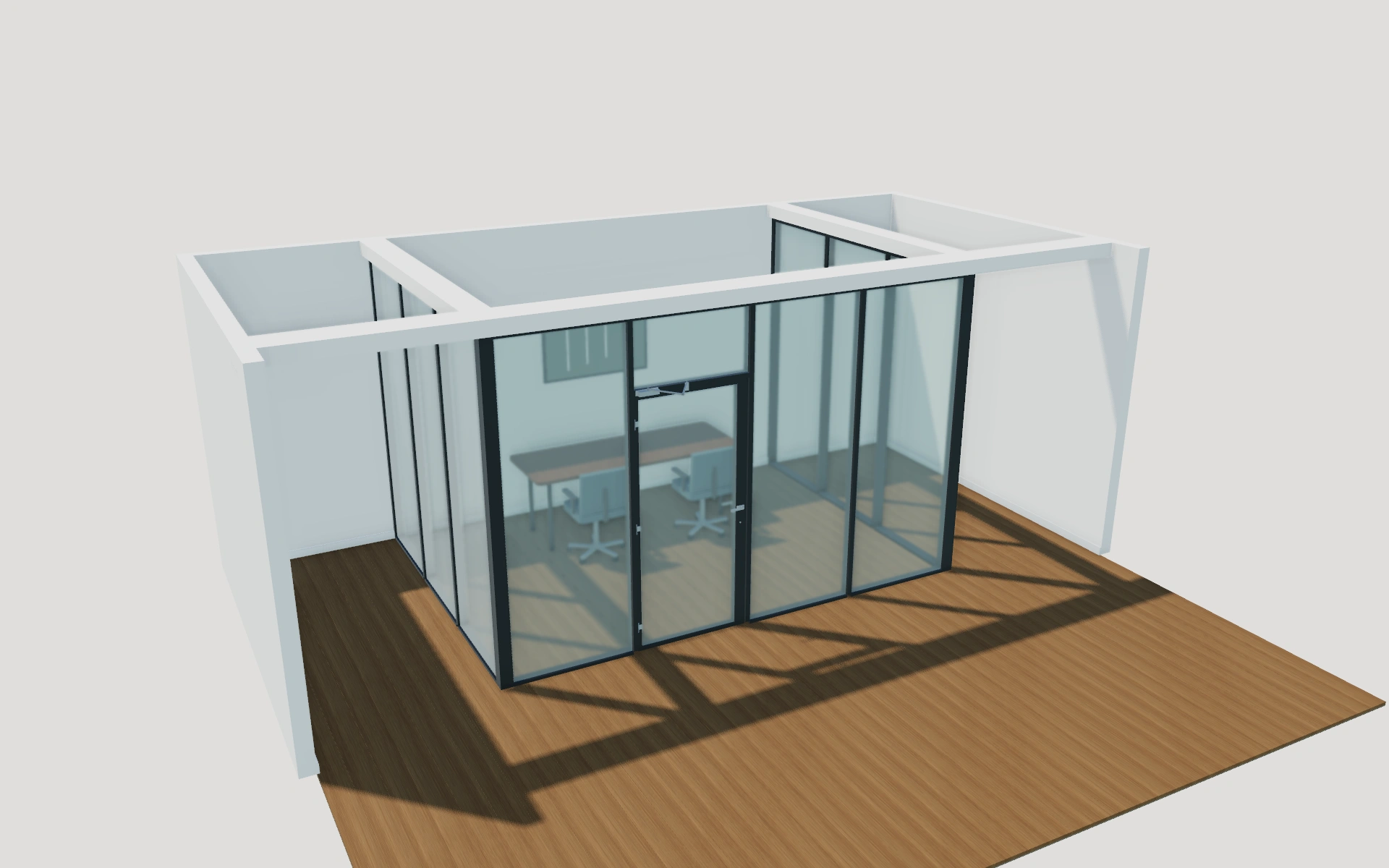
Show the choices.
Keep the specification.
Bring the room layout and its access details into one working view. Configure glazed modules and returns, coordinate profiles and lower infills, and compare hinged or sliding doors in an original furnished office setting.
- Straight front or glass returns
- Single or double-pane appearance
- Hinged, paired or sliding doors
- Privacy bands & integral blinds
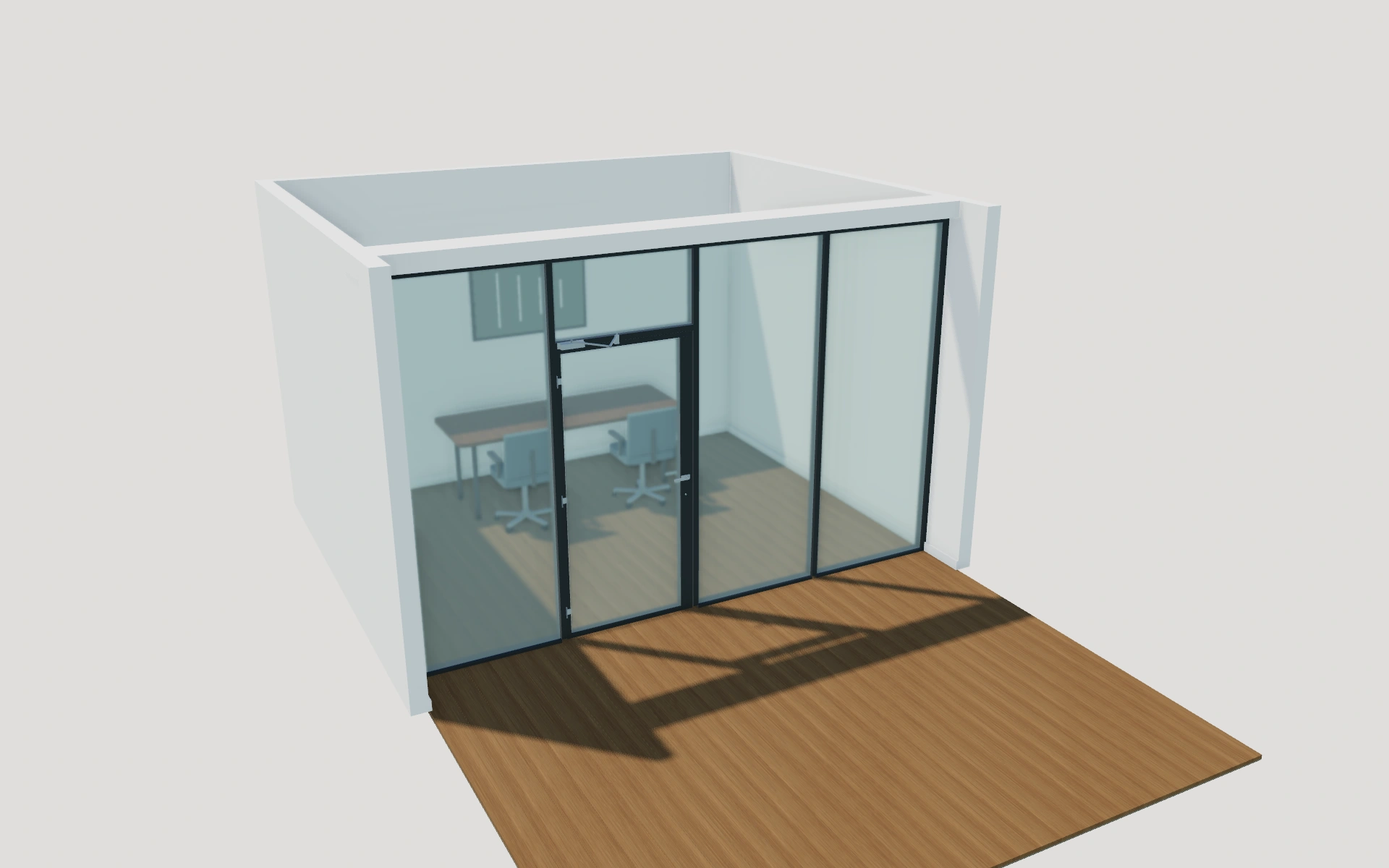
Set the office front
Choose the arrangement and module count, then set compatible front dimensions and return depths. Corner profiles and terminal connections follow the selected layout.
Explore the glass office partitions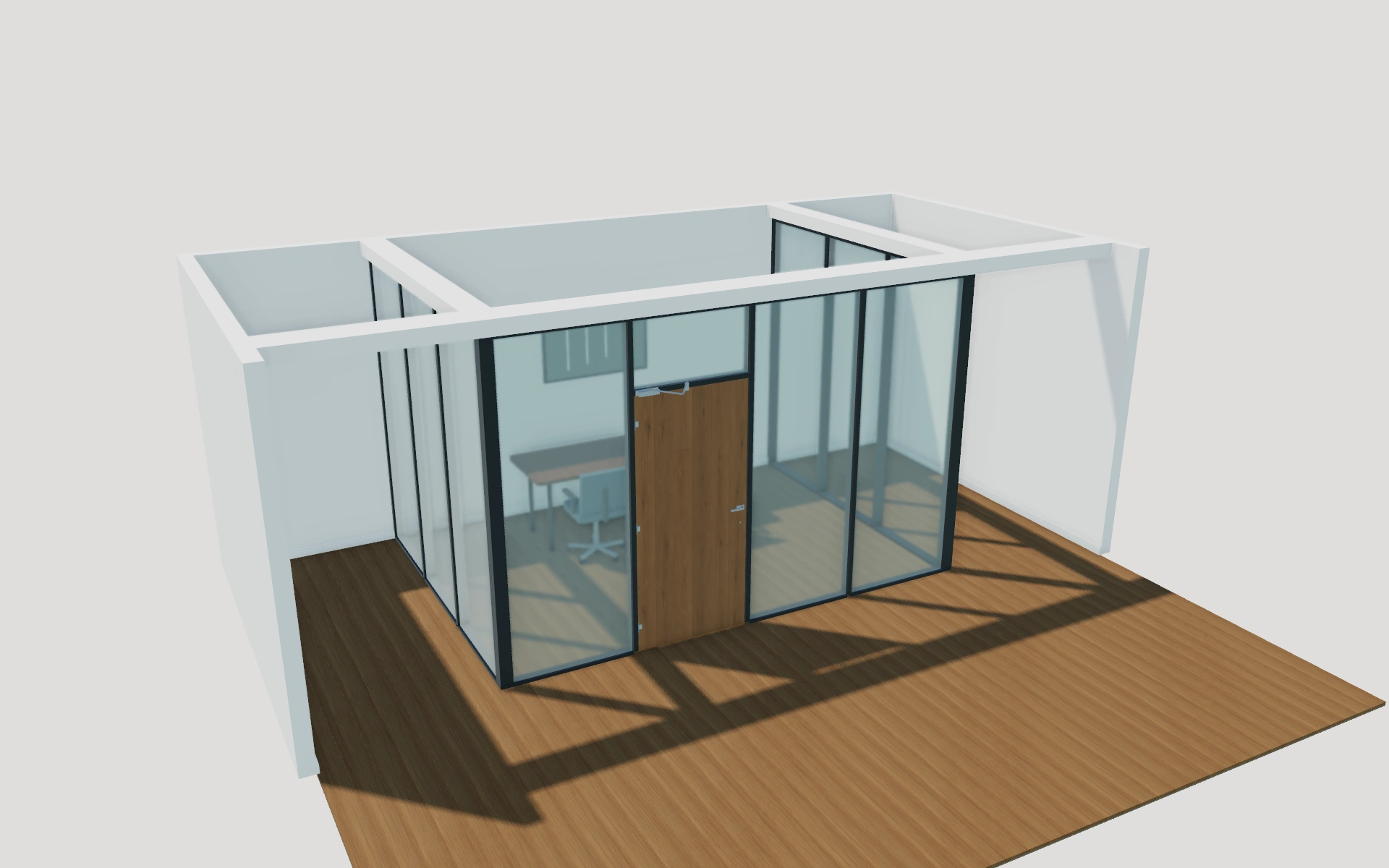
Coordinate privacy and finishes
Compare framed or minimal joints, glass appearance, lower panels and hardware. Add integral blinds to double-pane fixed modules and tilt their actual slats in the 3D view.
Explore the glass office partitions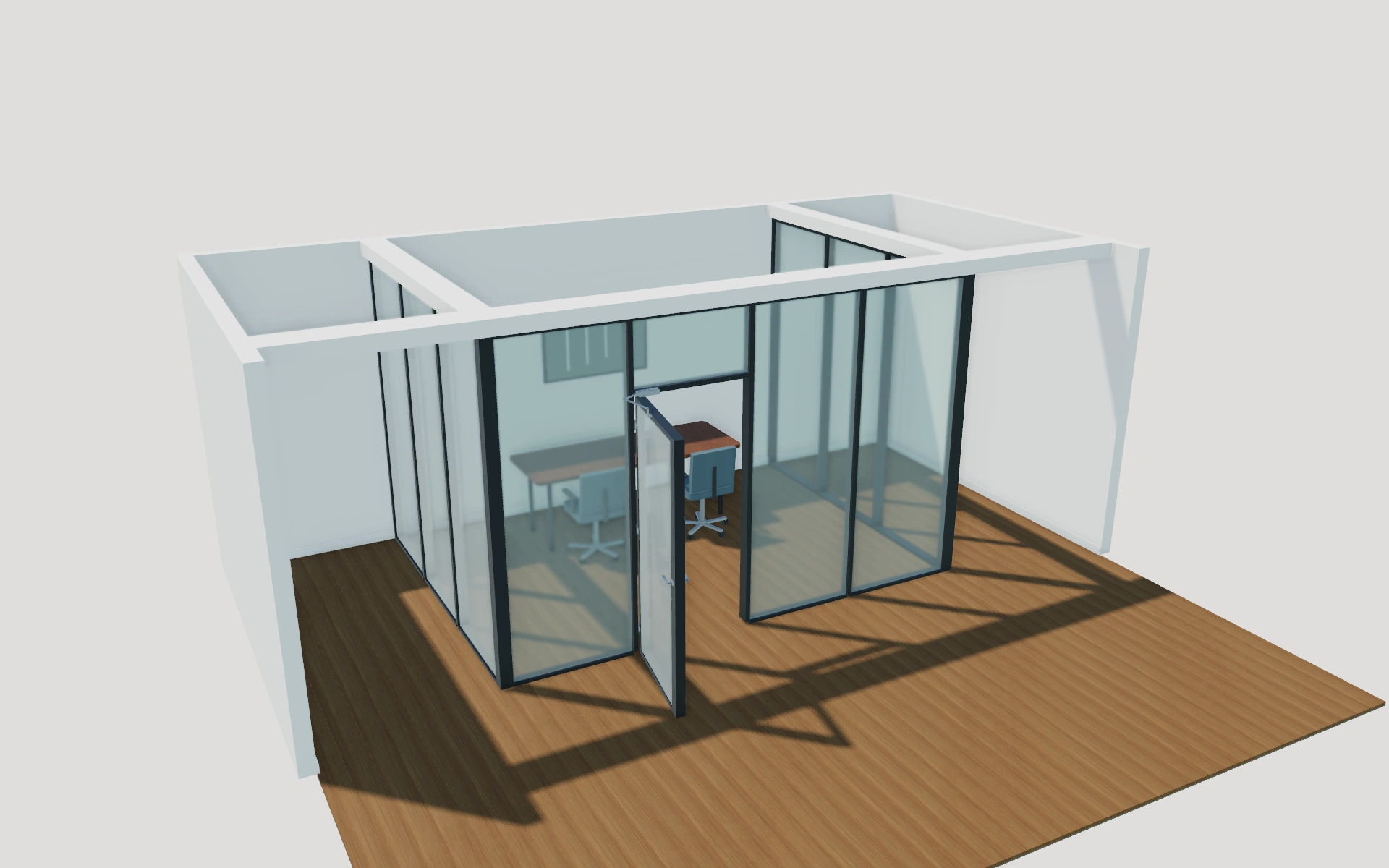
Resolve the door
Choose single or double hinged doors, or a sliding leaf with a compatible parking bay. Review its movement, the top plan and measurements, then save the configuration to a customer project.
Discuss your product rangeOne customer.
A connected workflow.
Keep the glass office partitions configuration with the customer. Follow the enquiry, arrange the next conversation and prepare a proposal from the same workspace.
From enquiry to accepted project
Save the configuration to a customer, track the lead’s status and keep project details, notes and activities together.
Make the next conversation happen
Create customer and project appointments. See everyone’s schedule, filter by user and connect a dedicated Google calendar.
Your proposal. Your prices. Your logo.
Add product, delivery and installation items before generating a branded PDF. An accepted proposal can continue into an order and invoices.
New enquiry1
Configuration saved
Proposal1
Branded proposal prepared
Accepted1
Continue into order
Product planning.
Sales tools included.
Choose this configurator as part of your Sales Visualizer workspace. Your subscription determines the number of users and selected products.
Interactive 3D
Straight front or glass returns · Single or double-pane appearance
2D planning views
Review the configuration from a planning view.
Augmented reality
Inspect the product on supported AR devices.
Customer profiles
Keep customer details, projects and activities together.
Team appointments
Schedule customer visits and project reviews.
Proposals and PDFs
Add your items and prices, with your company branding.
Lead management
Follow project stages in the team pipeline.
Orders and invoices
Continue accepted proposals and record external payments.
AR requires a supported device. Visual configurations do not replace engineering, site measurement or installation review. Final product availability, dimensions, site conditions and installation requirements must be confirmed by your team.
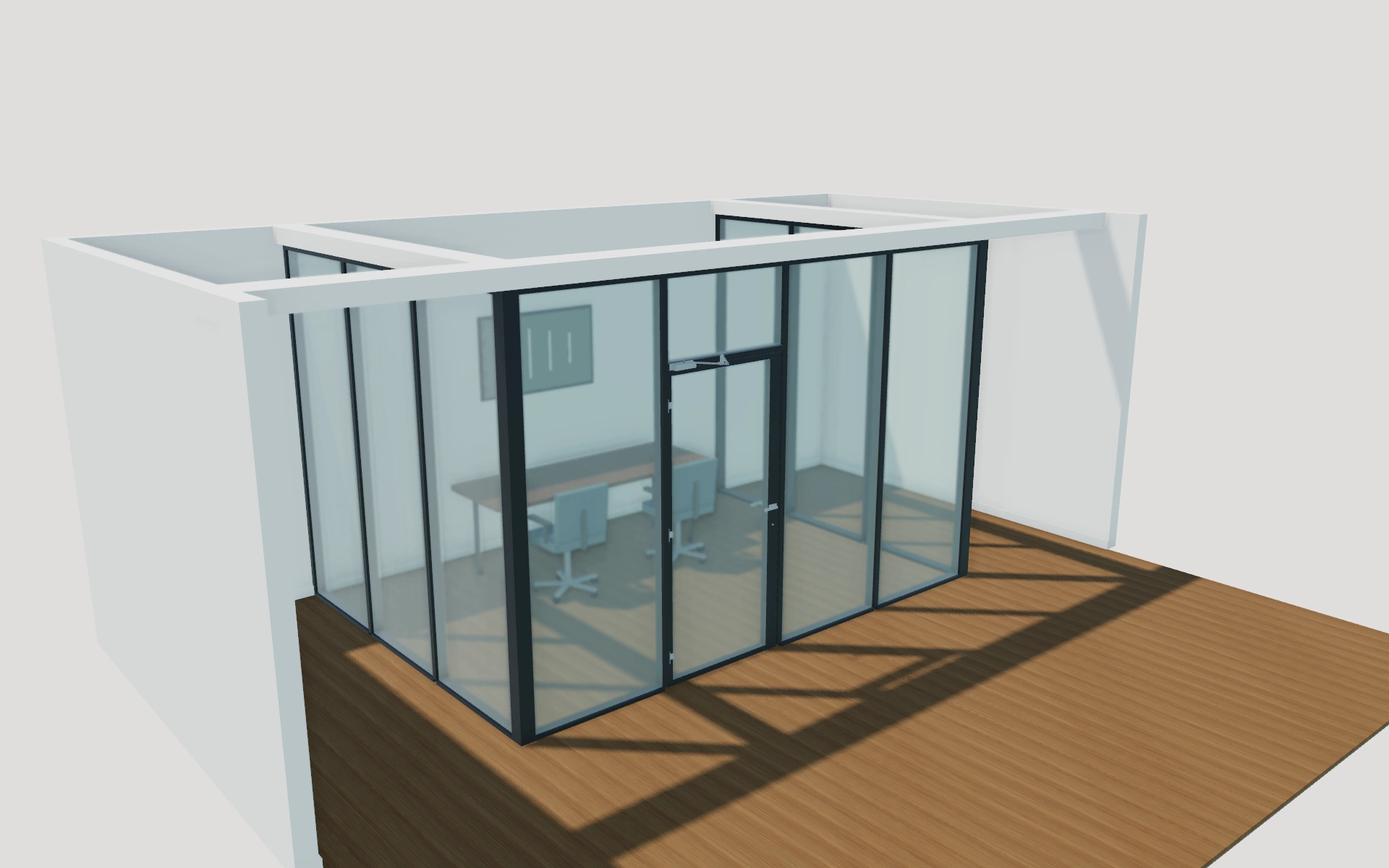
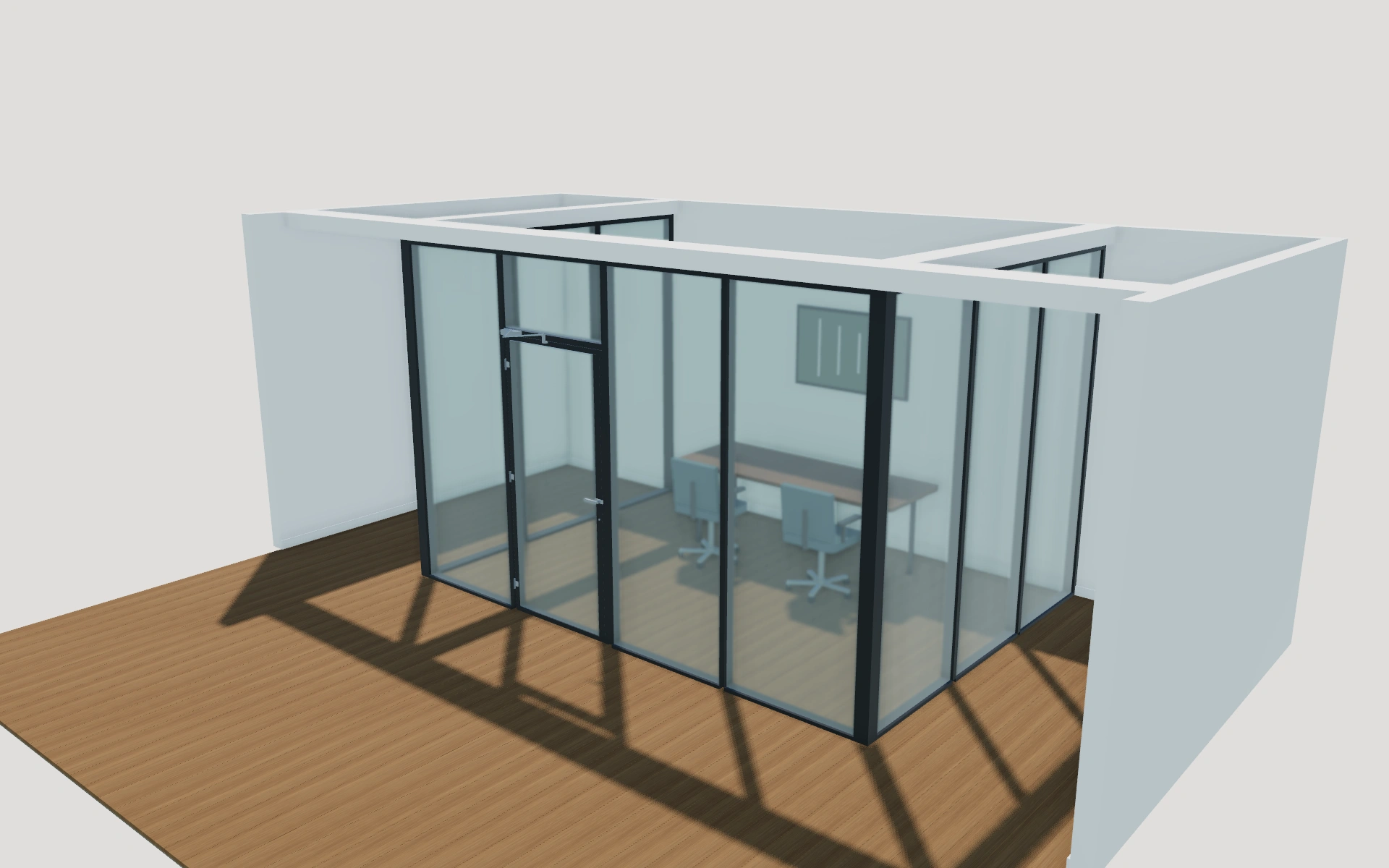
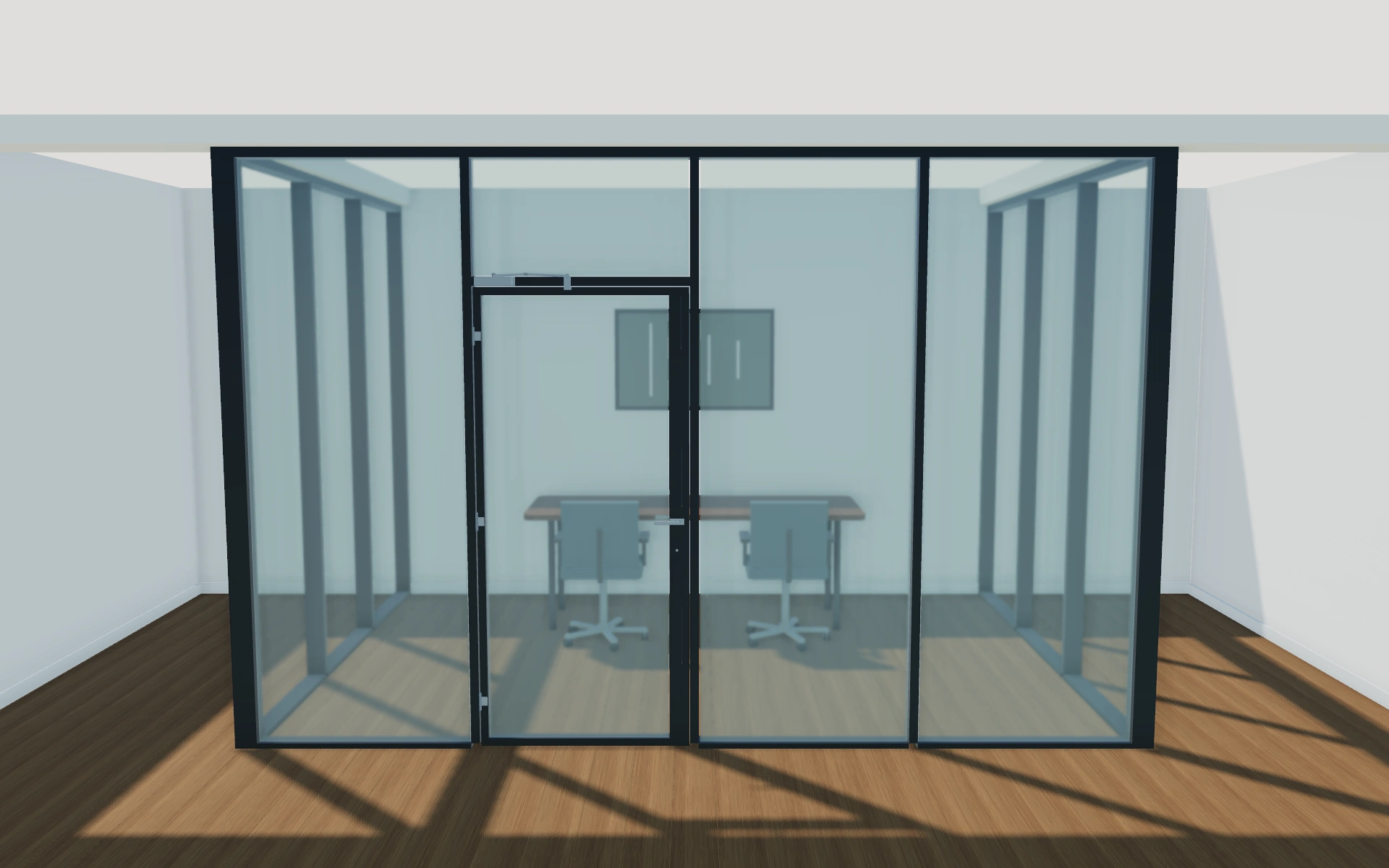
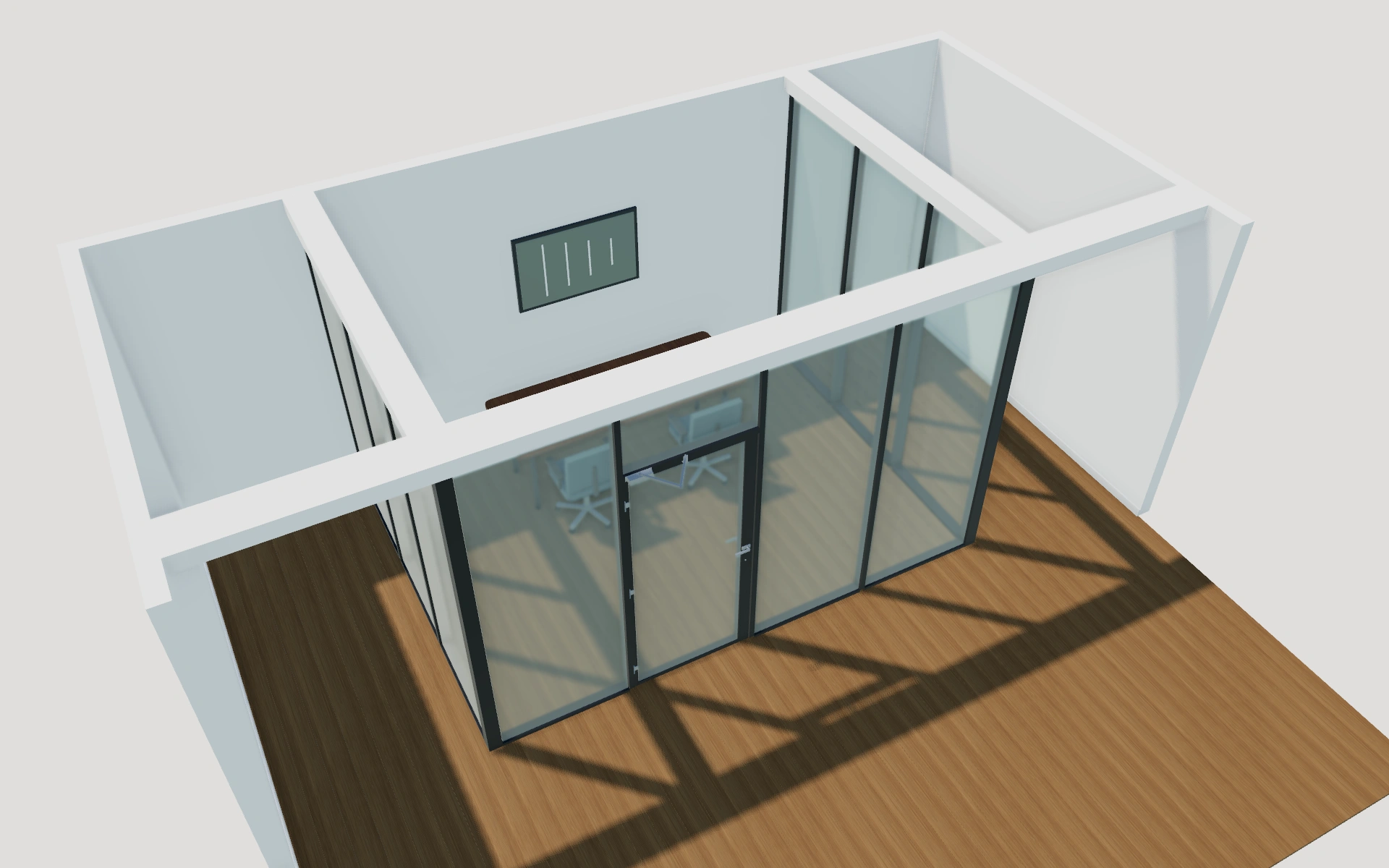
See more glass office partitions views 11 additional views
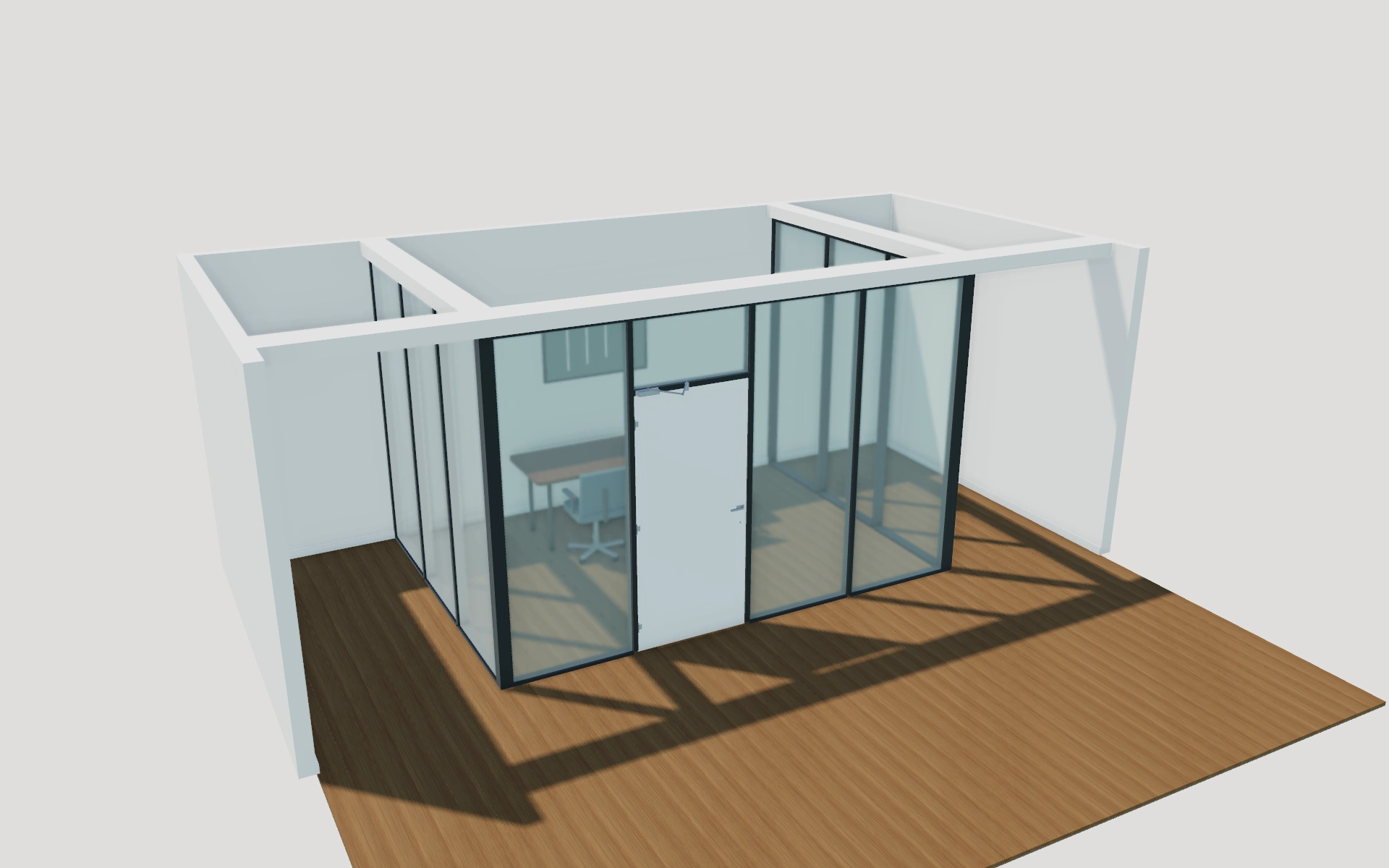
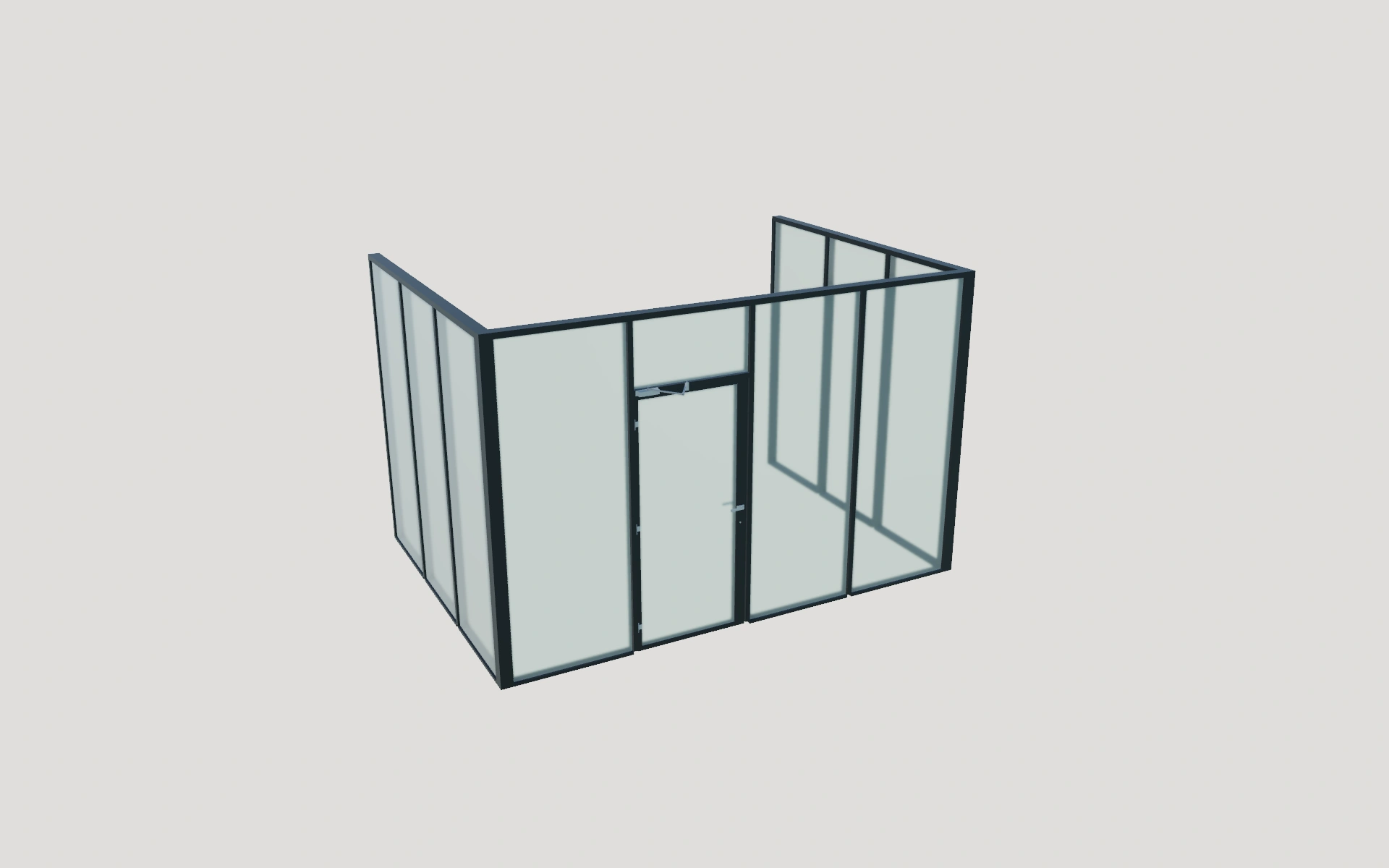
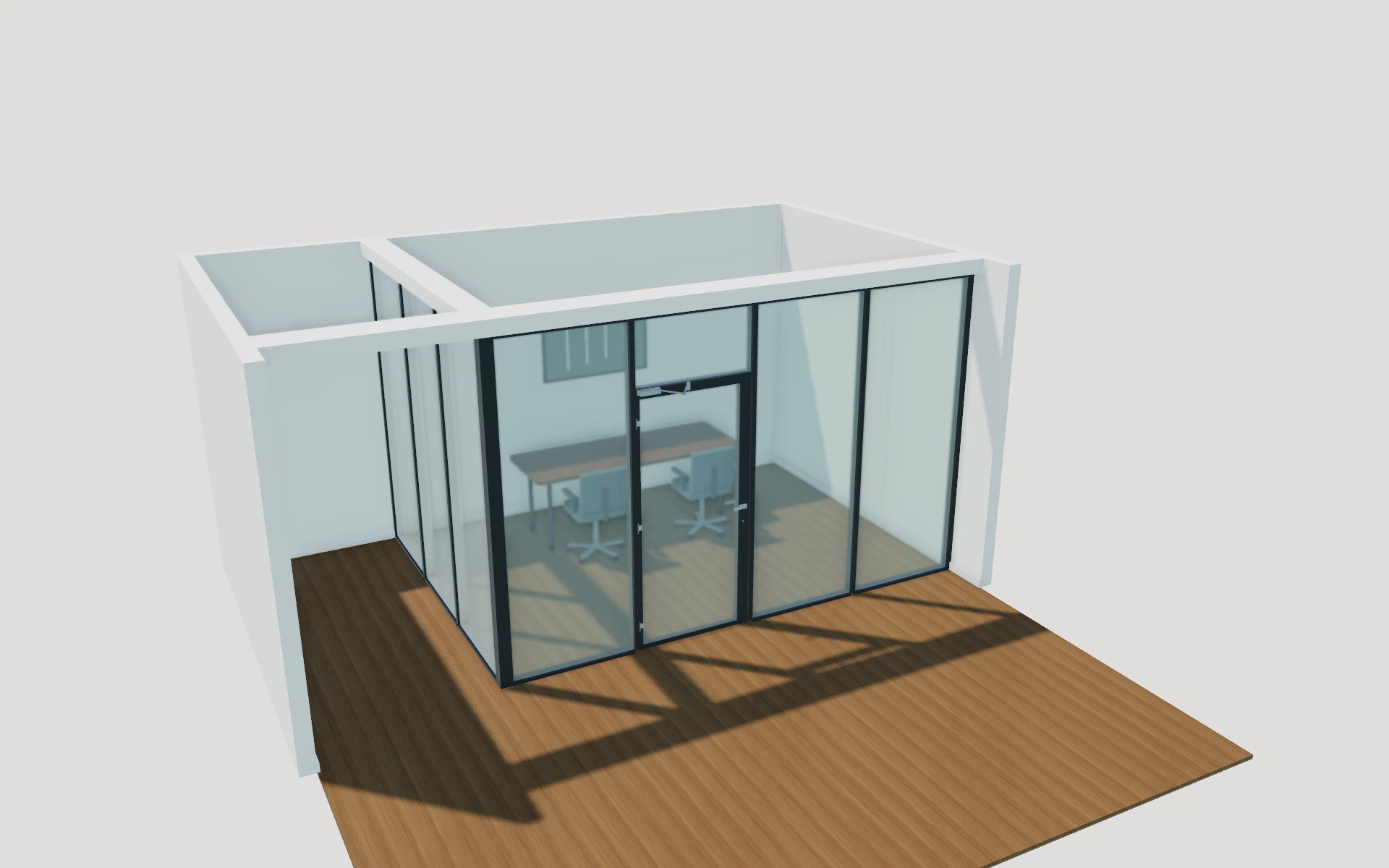
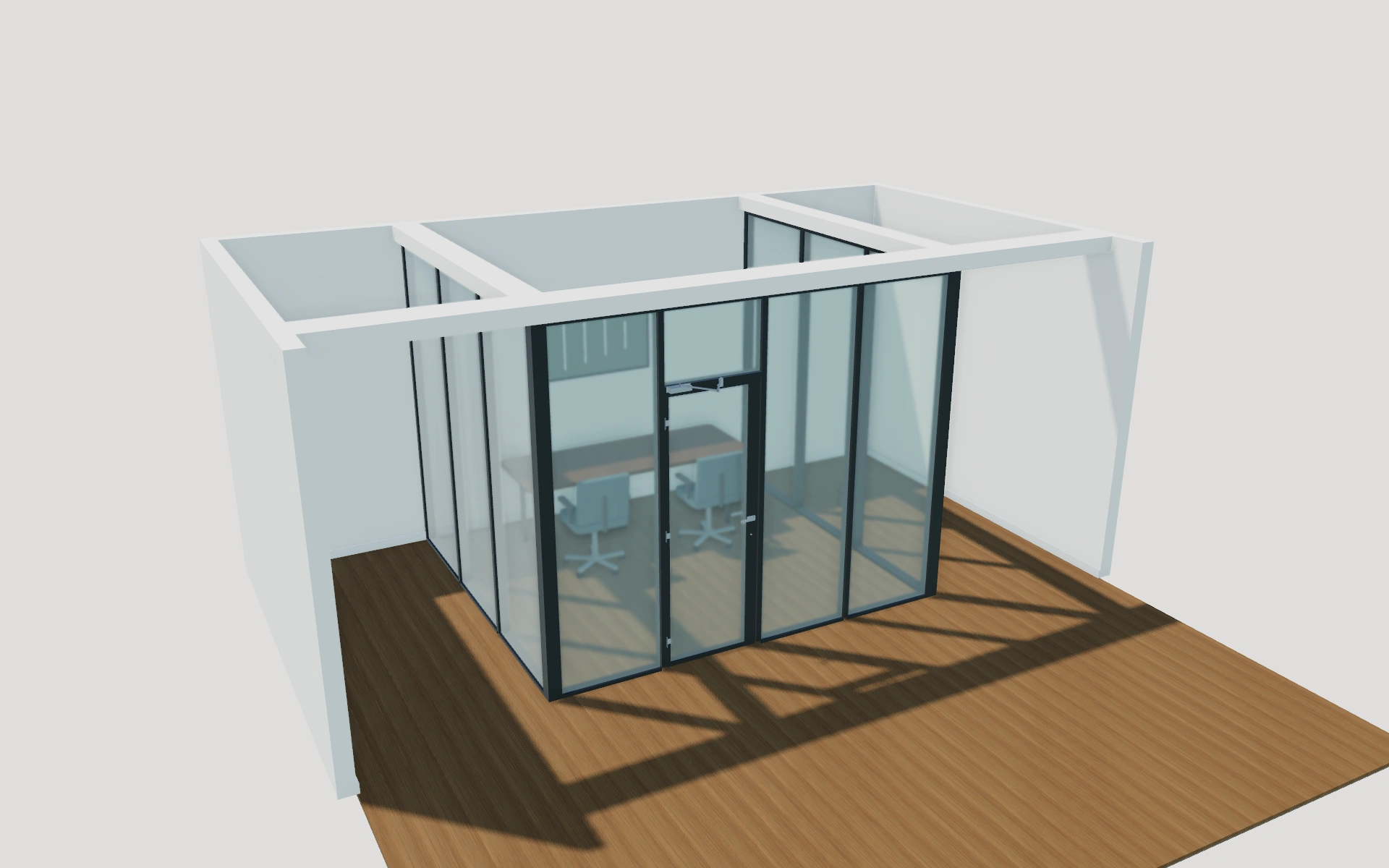
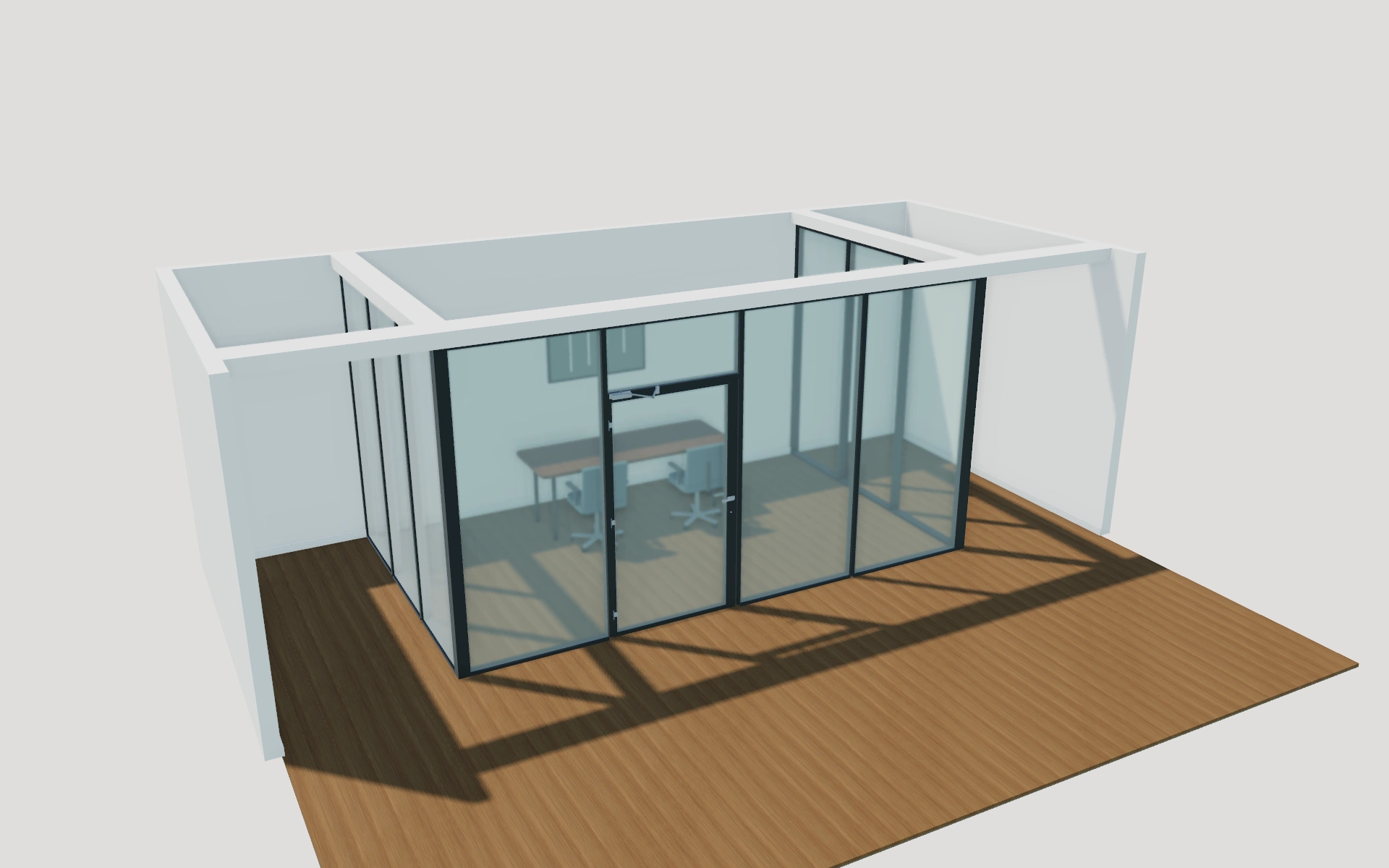
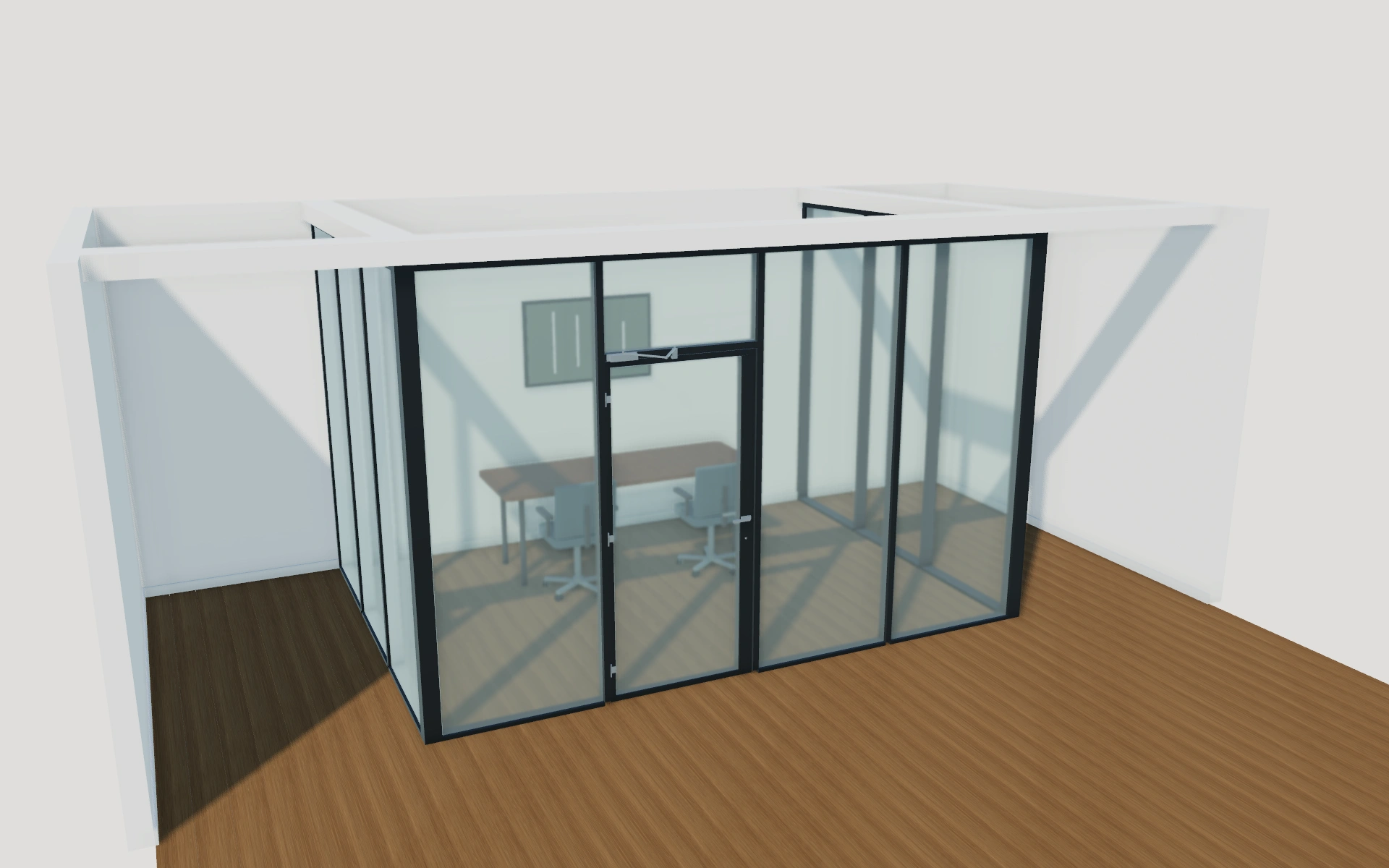
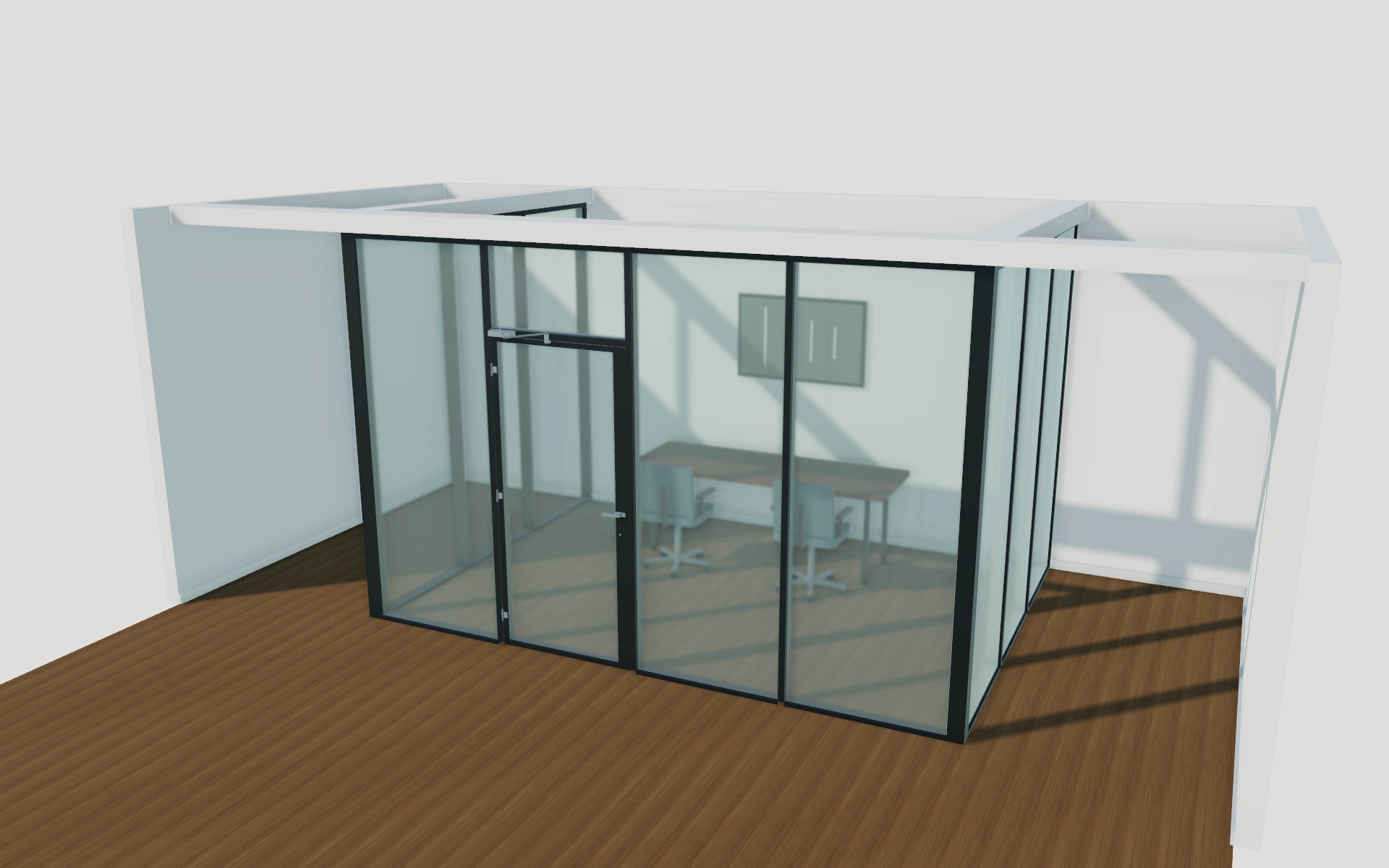
Make the next product discussion clearer.
Review the choices, specification questions and proposal details for your glass office partitions project.
Read the glass office partitions configurator guideYour glass office partitions questions.
Need to discuss your own product rules or model? Talk to our team.
What can I configure with the glass office partitions model?
Choose the arrangement and module count, then set compatible front dimensions and return depths. Corner profiles and terminal connections follow the selected layout. Compare framed or minimal joints, glass appearance, lower panels and hardware. Add integral blinds to double-pane fixed modules and tilt their actual slats in the 3D view. Choose single or double hinged doors, or a sliding leaf with a compatible parking bay. Review its movement, the top plan and measurements, then save the configuration to a customer project.
Can I keep several configurations for the same customer?
Yes. Create a customer contact, save configurations as projects and keep the customer’s project history and activities together. Your team can follow leads in the pipeline and continue accepted proposals into orders.
How do quotes, branded PDFs and invoices work?
You add your own proposal items and prices. Prepare a PDF with your company’s branding, then manage an accepted proposal as an order. From the order, create invoices and record payments received outside the platform.
Can my team schedule appointments for these projects?
Yes. Link an appointment to the customer and project, view the team calendar and filter by user. Users can connect a dedicated Google calendar; personal calendars are not imported.
Make your next product
conversation a visual one.
See how the glass office partitions configurator fits your products and sales process.